
"One Click Trading" Service
The service is likely to gain recognition from the traders, whose strategy is to make a lot of transactions.
You need to enter and save your settings in "One-Click Trading" just once, and you will be able to open and close orders by a single mouse click! "One-Click Trading" service allows you to run trading operations with just one click of the mouse.
How to set up One-Click Trading
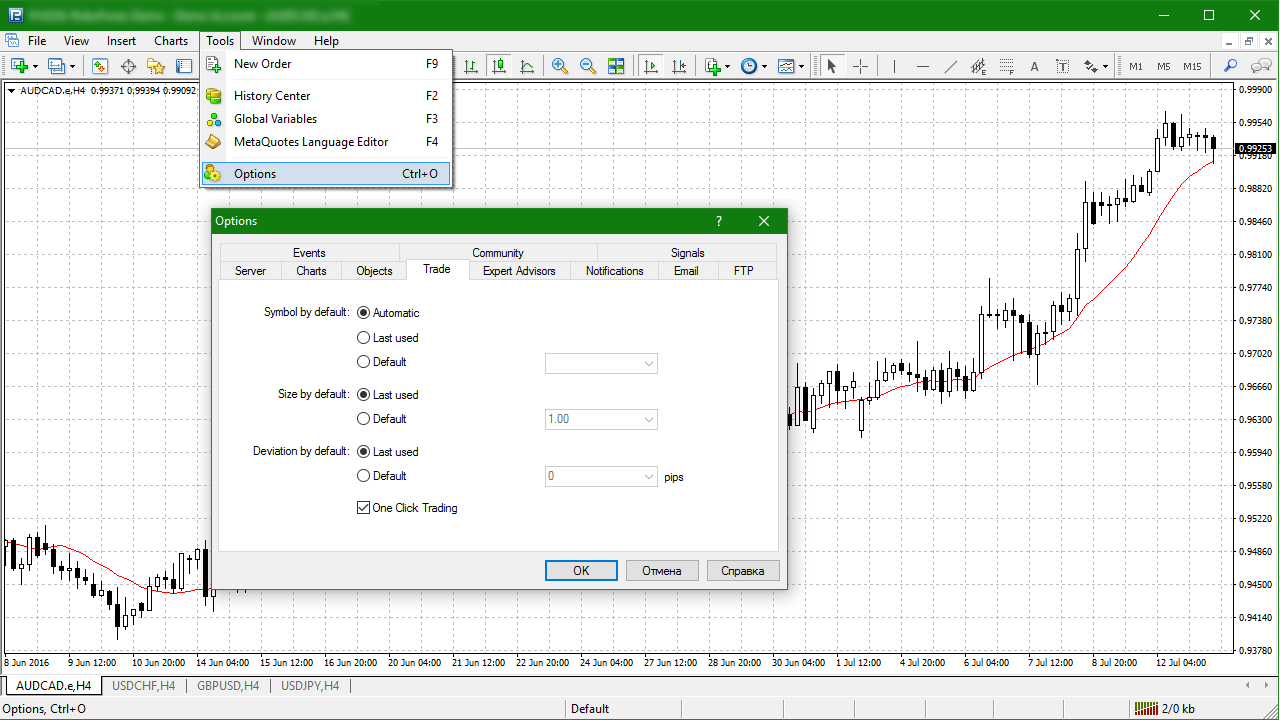
In terminal, open menu "Service/Settings", go to "Trading" tab and check item "One-Click Trading".
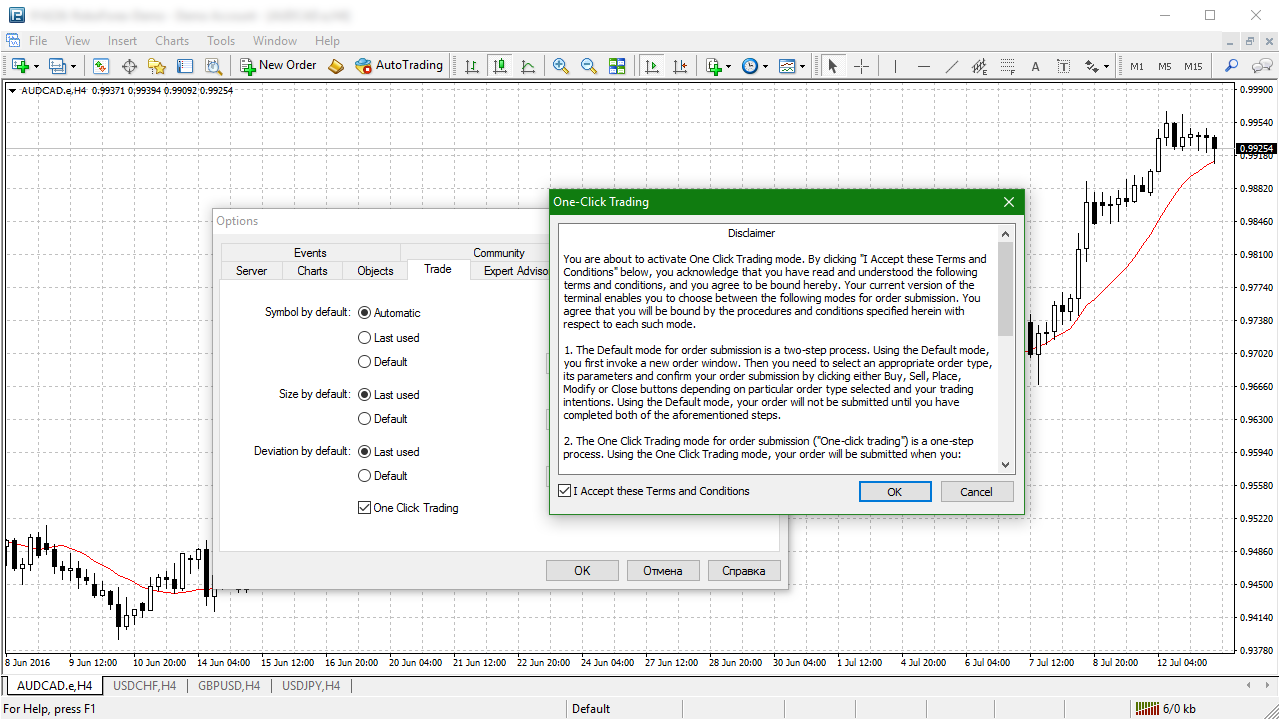
In the opened window check "I accept these terms" and press "OK".
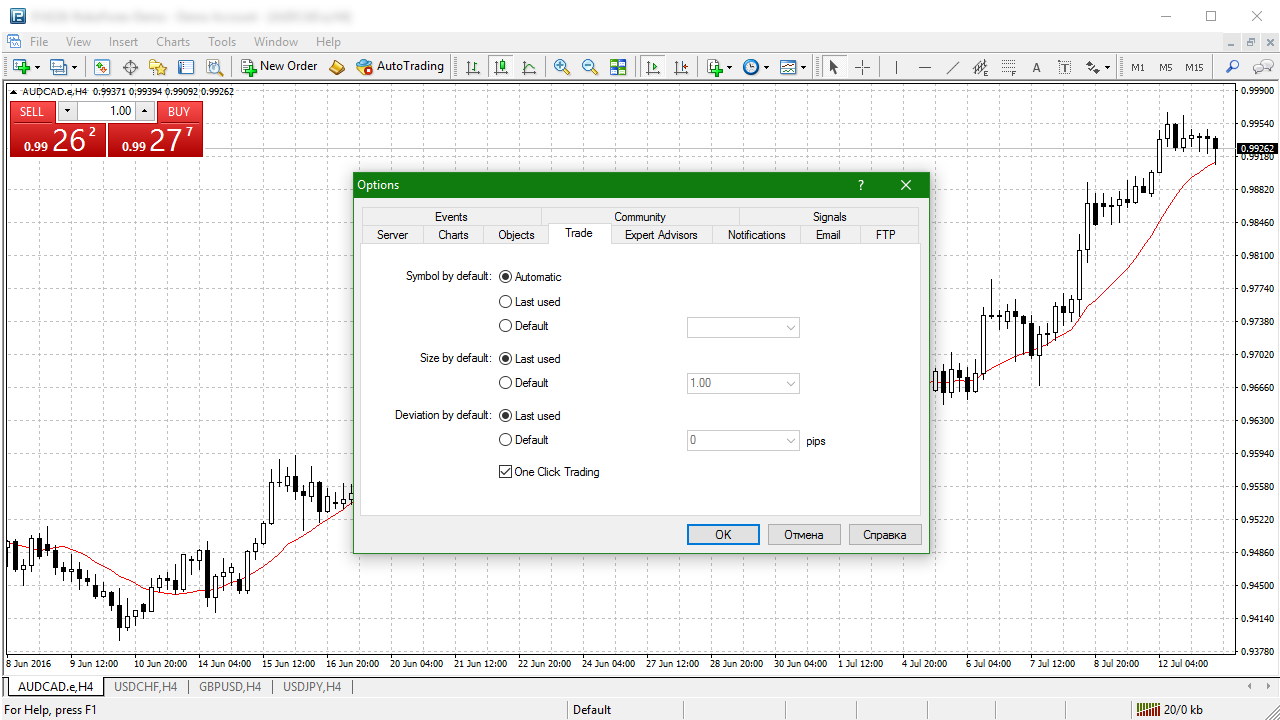
Press "OK" one more time in tab "Trading". Now you can use function "One-Click Trading" on chart.
How to use One-Click Trading
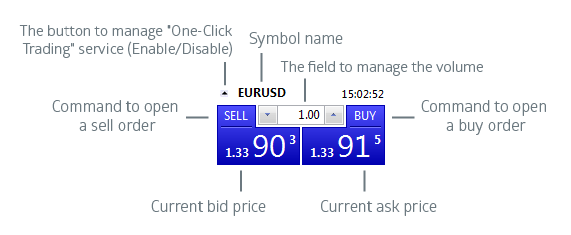
- The button to manage "One-Click Trading" service (Enable/Disable)
- Symbol name
- Command to open a sell order
- Command to open a buy order
- The field to manage the volume
- Current bid price
- Current ask price
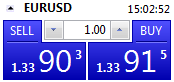
Depending on the quotes, the area of performing one-click trading operations and price has different colors:
if the current price is higher than the previous one.
if the current price is lower than the previous one.
if the price hasn't changed for the last 15 seconds.
!
Be careful, once the "Sell" or "Buy" button is pressed, the corresponding request for buying or selling the specified amount of a selected symbol is immediately sent to the server without any additional confirmation.